<!DOCTYPE html>
	<html lang="vi" xmlns="http://www.w3.org/1999/xhtml" prefix="og: http://ogp.me/ns#">
	<head>
<title>Hướng dẫn nhập tài khoản từ file Excel lên AZtest</title>
<meta name="description" content="Hướng dẫn nhập tài khoản từ file Excel lên AZtest - Savefile - Tin tức -...">
<meta name="author" content="taodethitracnghiemonline">
<meta name="copyright" content="taodethitracnghiemonline [contact@aztest.vn]">
<meta name="generator" content="NukeViet v4.5">
<meta name="viewport" content="width=device-width, initial-scale=1">
<meta http-equiv="Content-Type" content="text/html; charset=utf-8">
<meta property="og:title" content="Hướng dẫn nhập tài khoản từ file Excel lên AZtest">
<meta property="og:type" content="website">
<meta property="og:description" content="Savefile - Tin tức - http&#x3A;&#x002F;&#x002F;taodethitracnghiemonline.aztest.vn&#x002F;news&#x002F;savefile&#x002F;huong-dan-su-dung-aztest&#x002F;huong-dan-nhap-tai-khoan-tu-file-excel-len-aztest-17.html">
<meta property="og:site_name" content="taodethitracnghiemonline">
<meta property="og:url" content="http://taodethitracnghiemonline.aztest.vn/news/savefile/huong-dan-su-dung-aztest/huong-dan-nhap-tai-khoan-tu-file-excel-len-aztest-17.html">
<link rel="shortcut icon" href="http://taodethitracnghiemonline.aztest.vn/uploads/taodethitracnghiemonline/fav.png">
<link rel="canonical" href="http://taodethitracnghiemonline.aztest.vn/news/savefile/huong-dan-su-dung-aztest/huong-dan-nhap-tai-khoan-tu-file-excel-len-aztest-17.html">
<link rel="alternate" href="http://taodethitracnghiemonline.aztest.vn/news/rss/" title="Tin tức" type="application/rss+xml">
<link rel="alternate" href="http://taodethitracnghiemonline.aztest.vn/news/rss/huong-dan-tao-de-trac-nghiem/" title="Tin tức - Hướng dẫn tạo đề trắc nghiệm" type="application/rss+xml">
<link rel="alternate" href="http://taodethitracnghiemonline.aztest.vn/news/rss/huong-dan-su-dung-aztest/" title="Tin tức - Hướng dẫn sử dụng AZtest" type="application/rss+xml">
<link rel="preload" as="style" href="http://taodethitracnghiemonline.aztest.vn/assets/css/font-awesome.min.css" type="text/css">
<link rel="preload" as="style" href="http://taodethitracnghiemonline.aztest.vn/themes/template_pgd/css/bootstrap.min.css" type="text/css">
<link rel="preload" as="style" href="http://taodethitracnghiemonline.aztest.vn/themes/template_pgd/css/style.css" type="text/css">
<link rel="preload" as="style" href="http://taodethitracnghiemonline.aztest.vn/themes/template_pgd/css/style.responsive.css" type="text/css">
<link rel="preload" as="style" href="http://taodethitracnghiemonline.aztest.vn/themes/default/css/news.css" type="text/css">
<link rel="preload" as="script" href="http://taodethitracnghiemonline.aztest.vn/assets/js/jquery/jquery.min.js" type="text/javascript">
<link rel="preload" as="script" href="http://taodethitracnghiemonline.aztest.vn/assets/js/language/vi.js" type="text/javascript">
<link rel="preload" as="script" href="http://taodethitracnghiemonline.aztest.vn/assets/js/DOMPurify/purify3.js" type="text/javascript">
<link rel="preload" as="script" href="http://taodethitracnghiemonline.aztest.vn/assets/js/global.js" type="text/javascript">
<link rel="preload" as="script" href="http://taodethitracnghiemonline.aztest.vn/assets/js/site.js" type="text/javascript">
<link rel="preload" as="script" href="http://taodethitracnghiemonline.aztest.vn/themes/default/js/news.js" type="text/javascript">
<link rel="preload" as="script" href="http://taodethitracnghiemonline.aztest.vn/themes/template_pgd/js/main.js" type="text/javascript">
<link rel="preload" as="script" href="http://taodethitracnghiemonline.aztest.vn//pagead2.googlesyndication.com/pagead/js/adsbygoogle.js" type="text/javascript">
<link rel="preload" as="script" href="https://www.googletagmanager.com/gtag/js?id=UA-163906928-1" type="text/javascript">
<link rel="preload" as="script" href="http://taodethitracnghiemonline.aztest.vn/themes/template_pgd/js/bootstrap.min.js" type="text/javascript">
<link rel="preload" as="script" href="http://taodethitracnghiemonline.aztest.vn/themes/template_pgd/js/jquery.sticky-kit.min.js" type="text/javascript">
<link rel="StyleSheet" href="http://taodethitracnghiemonline.aztest.vn/assets/css/font-awesome.min.css">
<link rel="StyleSheet" href="http://taodethitracnghiemonline.aztest.vn/themes/template_pgd/css/bootstrap.min.css">
<link rel="StyleSheet" href="http://taodethitracnghiemonline.aztest.vn/themes/template_pgd/css/style.css">
<link rel="StyleSheet" href="http://taodethitracnghiemonline.aztest.vn/themes/template_pgd/css/style.responsive.css">
<link rel="StyleSheet" href="http://taodethitracnghiemonline.aztest.vn/themes/default/css/news.css">
<style>
	body{background: #fff;}
</style>
	<!-- Global site tag (gtag.js) - Google Analytics -->
</head>
	<body>
<div id="print">
	<div id="hd_print">
		<h2 class="pull-left">taodethitracnghiemonline</h2>
		<p class="pull-right"><a title="taodethitracnghiemonline" href="http://taodethitracnghiemonline.aztest.vn/">http://taodethitracnghiemonline.aztest.vn</a></p>
	</div>
	<div class="clear"></div>
	<hr />
	<div id="content">
		<h1>Hướng dẫn nhập tài khoản từ file Excel lên AZtest</h1>
		<ul class="list-inline">
			<li>Thứ ba - 18/08/2020 08:50</li>
			<li class="hidden-print txtrequired"><em class="fa fa-print">&nbsp;</em><a title="In ra" href="javascript:;" onclick="window.print()">In ra</a></li>
			<li class="hidden-print txtrequired"><em class="fa fa-power-off">&nbsp;</em><a title="Đóng cửa sổ này" href="javascript:;" onclick="window.close()">Đóng cửa sổ này</a></li>
		</ul>
		<div class="clear"></div>
		<div id="hometext">
			Nhập thủ công từng tài khoản một lên hệ thống trong AZtest không những mất thời gian mà đôi khi còn sai thông tin. AZtest vốn dĩ có tích hợp tính năng giúp bạn giải quyết vấn đề này đó chính là thêm tài khoản thành viên từ file Excel. Vậy làm sao để sử dụng tính năng năng này, mời các bạn cùng theo dõi bài viết sau của AZtest.
		</div>
		<div id="bodytext" class="clearfix">
			<p dir="ltr" style="text-align: justify;"><span style="font-size:14px;"><span style="font-family:Arial,Helvetica,sans-serif;">Để thêm tài khoản thành viên từ file Excel bạn thực hiện theo các bước sau đây:</span></span></p>

<h2 dir="ltr" style="text-align: justify;"><strong>1. Tạo file Excel thông tin tài khoản thành viên theo mẫu&nbsp;</strong></h2>

<p dir="ltr" style="text-align: justify;"><span style="font-size:14px;"><span style="font-family:Arial,Helvetica,sans-serif;"><u><strong>Bước 1:</strong></u> Đăng nhập vào tài khoản quản trị.</span></span></p>

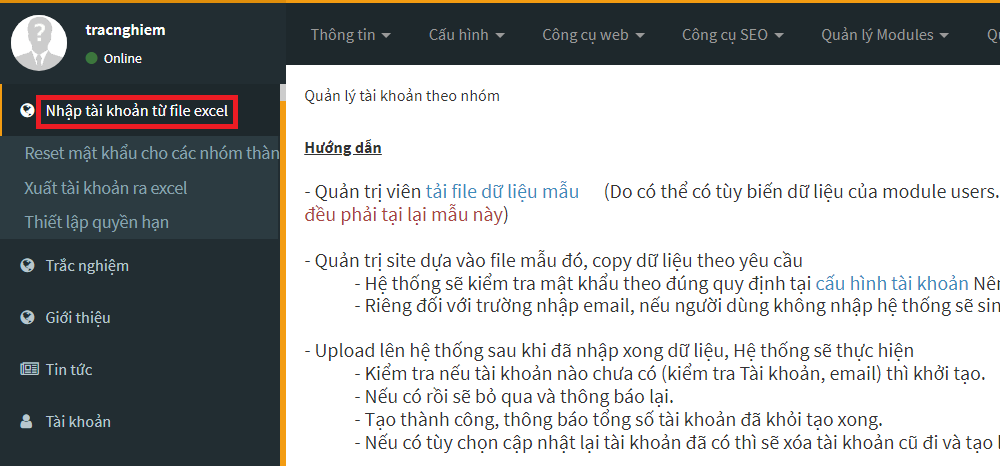
<p dir="ltr" style="text-align: justify;"><span style="font-size:14px;"><span style="font-family:Arial,Helvetica,sans-serif;"><u><strong>Bước 2:</strong></u> Chọn <strong>Nhập tài khoản từ file Excel</strong></span></span></p>

<div style="text-align:center"><img alt="" height="280" src="https://lh3.googleusercontent.com/Y4JDFP0caY6uUoaxYGyB3RQvhVt6fdqai1YvIPEJ2Js63IkC72JENfgS6lDWZx5jxXVBvqNmNLUN4OIBUhThZU9BYmR6gWN8slBC9-RMNkLvWfUlI135xqCw8AGTv9VudcC_GZsm" width="602" /></div>

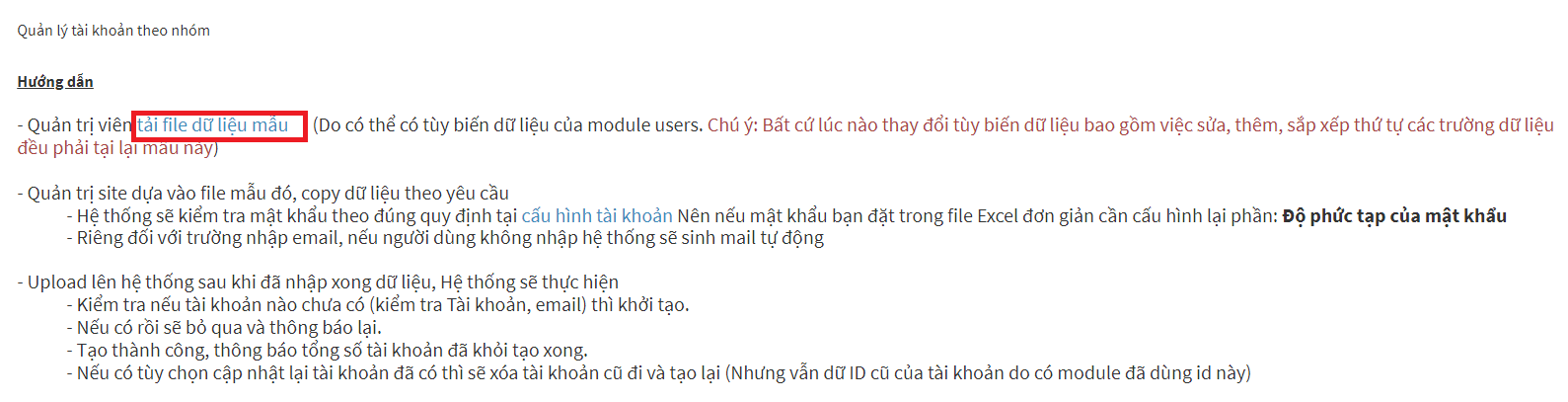
<p dir="ltr" style="text-align: justify;"><span style="font-size:14px;"><span style="font-family:Arial,Helvetica,sans-serif;"><u><strong>Bước 3: </strong></u>Chọn <strong>Tải dữ liệu file mẫu&nbsp;</strong></span></span></p>

<div style="text-align:center"><img alt="" height="155" src="https://lh6.googleusercontent.com/MF-ogKdqCMh6Twack0d6KDLLiGJRp9PaPCn3PbU2KfGfG5qKczOgGMufvY5A2HOPKvQCYSBlAIr9E3FmIqH3HUUxxBv4z1IPC4In6wJQjl82k09IuQwdLqmxFKgE4MymT2qx3HR7" width="602" /></div>

<p dir="ltr" style="text-align: justify;"><span style="font-size:14px;"><span style="font-family:Arial,Helvetica,sans-serif;"><u><strong>Bước 4:</strong></u> Mở file dữ liệu mẫu và điền các trường thông tin trong file và lưu lại tương tự như hình bên dưới.</span></span></p>

<div style="text-align:center"><img alt="" height="95" src="https://lh3.googleusercontent.com/a5nSeKzITDWxQABRIzL3SsgdbBXsiiiC1qoduKqr6gal0VzqWUIqIx5aSkosN1a2nlclYwSvl6F7uBTjfI_NGR50nbL8YpkNBuasXfYObLQYBfeUfFFPsxFhbe1nlObf0JP9Dn_m" width="602" /></div>

<h2 dir="ltr" style="text-align: justify;"><strong>2. Import tài khoản từ file Excel lên AZtest&nbsp;</strong></h2>

<p dir="ltr" style="text-align: justify;"><span style="font-size:14px;"><span style="font-family:Arial,Helvetica,sans-serif;"><u><strong>Bước 1:</strong></u> Đăng nhập vào tài khoản quản trị.</span></span></p>

<p dir="ltr" style="text-align: justify;"><span style="font-size:14px;"><span style="font-family:Arial,Helvetica,sans-serif;"><u><strong>Bước 2:</strong></u> Chọn<strong> Nhập tài khoản từ file Excel&nbsp;</strong></span></span></p>

<div style="text-align:center"><img alt="" height="280" src="https://lh3.googleusercontent.com/QajhXZSY_GAt_OkRyxDaU6vGdE2ps3SDxrULzVyQXGCPAC9E5LB6lel0qOu5tAFw6pTkMud-Aye6bep0pGgnbiARkT8dApuMb25YI1SE6_tQcscuPeKnvtsnn9BQcRCAyH8VccaV" width="602" /></div>

<p dir="ltr" style="text-align: justify;"><span style="font-size:14px;"><span style="font-family:Arial,Helvetica,sans-serif;"><u><strong>Bước 3:</strong></u> Di chuyển chuột đến khu vực <strong>Nhập tên cho nhóm mới&nbsp;</strong></span></span></p>

<div style="text-align:center"><img alt="" height="100" src="https://lh5.googleusercontent.com/R1Q4-HAzk2pO8UDt_LRL-o7c0lx1PJC1VDbNNA4eQboT7IugRetq4gkow9Lpapb7a5kv2tMXJq-JMEGOeDqCLpnc00VqeeMrfJa5akaddo6lkWeT3ZA8QtmoqbwktRgGi4LP3zv8" width="602" /></div>

<p dir="ltr" style="text-align: justify;"><em><span style="font-size:14px;"><span style="font-family:Arial,Helvetica,sans-serif;">***<u><strong>Lưu ý:</strong></u> Trường hợp không nhập tên nhóm lớp bạn chọn một trong các nhóm có sẵn đã được tạo từ trước.</span></span></em></p>

<p dir="ltr" style="text-align: justify;"><span style="font-size:14px;"><span style="font-family:Arial,Helvetica,sans-serif;"><u><strong>Bước 4:</strong></u> Chọn file Excel đã điền dữ liệu -&gt;<strong> Chọn tệp</strong></span></span></p>

<div style="text-align:center"><img alt="" height="307" src="https://lh4.googleusercontent.com/ymWdpFyUW839kt9CQa0Sb_plytc2o0kYVJU-VIlUGrEgJSVy2pRUaoB4NrW5FDvMegk1qVqmoLt8r697O1jqV5_4wMbNAlU6-LQ3kAIk4ytBDRmzx2wsAhn0r8WMrxwAZMBW7xD4" width="602" /></div>

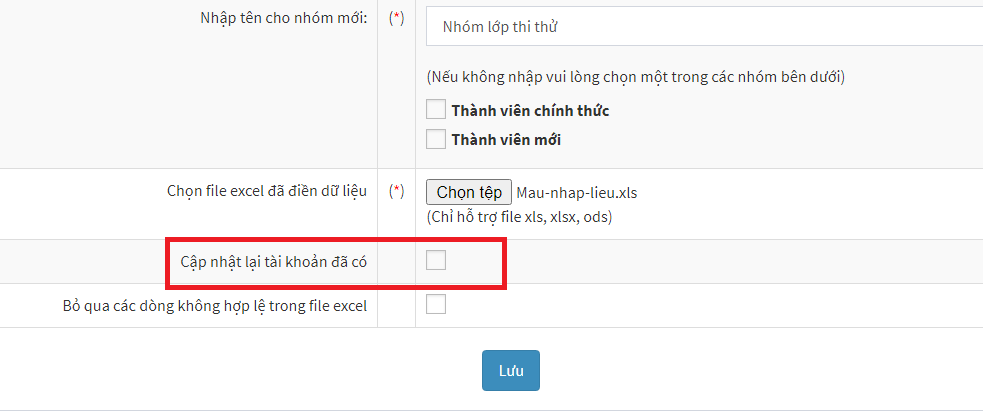
<p dir="ltr" style="text-align: justify;"><span style="font-size:14px;"><span style="font-family:Arial,Helvetica,sans-serif;"><u><strong>Bước 5:</strong></u> Nếu cập nhật lại tài khoản đã có sẵn trong hệ thống bạn chọn <strong>Cập nhật lại tài khoản đã có</strong>. Ngược lại nếu cập nhật mới tài khoản thành viên thì bỏ qua bước này.</span></span></p>

<div style="text-align:center"><img alt="" height="252" src="https://lh5.googleusercontent.com/Y831IHn6KFFZn5wcH5pml0FkkV1R80a3DEmna1xg-FtevUcpEXo_RbAsVOP1qLgSymtAj9TrXY7bIM1Y_4RjLF7tkInCti6Exa1ci4X7z3L9hgh8rfQt4YQsvYg72yttxdKBDHB8" width="602" /></div>

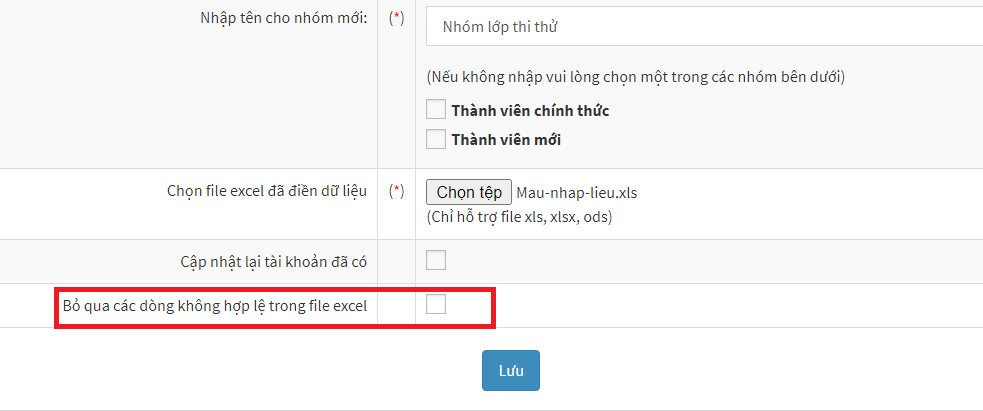
<p dir="ltr" style="text-align: justify;"><span style="font-size:14px;"><span style="font-family:Arial,Helvetica,sans-serif;"><u><strong>Bước 6:</strong></u> Chọn <strong>Bỏ qua các dòng không hợp lệ trong file Excel&nbsp;</strong></span></span></p>

<div style="text-align:center"><img alt="" height="252" src="https://lh4.googleusercontent.com/rYoSC8p5NkjFmRwMKGi9H1-eZcNVb8u0m8vygA5B3rMoa3RtcHKiCic0YeBQZjTwYspwWJPnsj5FTxOiYnRWb2R2xm8vdBp0uOOyyS3lup6zSAglTBG1uON_cHgrxV1QxGUDKUOd" width="602" /></div>

<p dir="ltr" style="text-align: justify;"><span style="font-size:14px;"><span style="font-family:Arial,Helvetica,sans-serif;"><em>*** <u><strong>Lưu ý:</strong></u> Việc tích chọn này sẽ giúp cho file dữ liệu tài khoản thành viên được tạo từ file Excel được import thuận lợi nếu có những dòng dữ liệu thông tin trong file không hợp lệ.</em></span></span></p>

<p dir="ltr" style="text-align: justify;"><span style="font-size:14px;"><span style="font-family:Arial,Helvetica,sans-serif;"><u><strong>Bước 7:</strong></u> Chọn <strong>Lưu</strong> để thực hiện thêm tài khoản từ file Excel. Sau khi lưu thành công sẽ xuất hiện thông báo như hình bên dưới.&nbsp;</span></span></p>

<div style="text-align:center"><img alt="" height="272" src="https://lh4.googleusercontent.com/m6eX1IwC1mzdCks015gWQ1HOn57X7f_BaGzSMazWMlbjCtryIeUcMuYixbQCRZnTK_r63QnDVMrmfe8c0Rtq5LiuriALMA7VpjReYrocB0T7MKIGRXHWSu3VJAcY4cwkdUR148vg" width="602" /></div>

<h2 dir="ltr" style="text-align: justify;"><strong>3. Reset lại mật khẩu cho các nhóm thành viên&nbsp;</strong></h2>

<p dir="ltr" style="text-align: justify;"><span style="font-size:14px;"><span style="font-family:Arial,Helvetica,sans-serif;">Tính năng “Reset lại mật khẩu cho các nhóm thành viên” cho phép người quản trị thiết lập mật khẩu cho các thành viên trong cùng một nhóm sử dụng mật khẩu chung, trừ các tài khoản quản trị và các nhóm không cho reset (do 1 số thành viên ở nhiều nhóm). Các bước thực hiện như sau:</span></span></p>

<p dir="ltr" style="text-align: justify;"><span style="font-size:14px;"><span style="font-family:Arial,Helvetica,sans-serif;"><u><strong>Bước 1:</strong></u> Đăng nhập vào site quản trị</span></span></p>

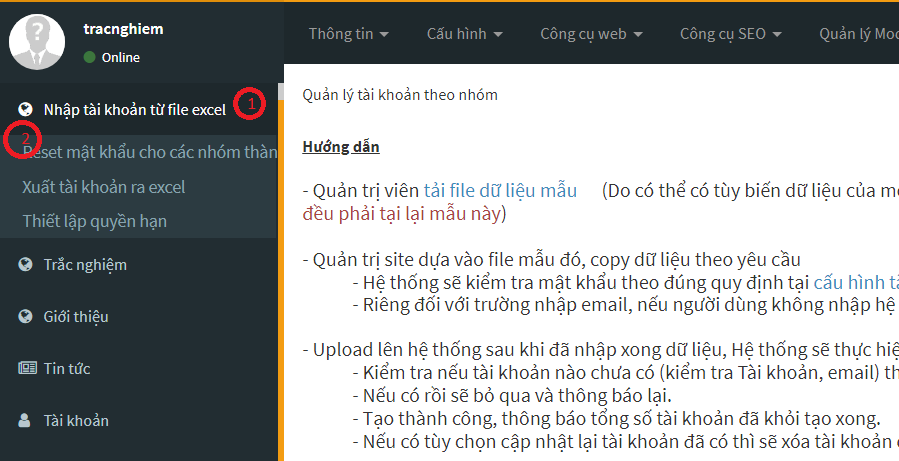
<p dir="ltr" style="text-align: justify;"><span style="font-size:14px;"><span style="font-family:Arial,Helvetica,sans-serif;"><u><strong>Bước 2:</strong></u> Chọn <strong>Nhập tài khoản từ file Excel (1) -&gt; Reset lại mật khẩu cho các nhóm thành viên (2)</strong></span></span></p>

<div style="text-align:center"><img alt="" height="308" src="https://lh4.googleusercontent.com/YaH5NOXfpPjaunvA87ONQ3ajWJgiS6bhbqEMnHSelELqPKbSvQe9x9QoMuLLcH1SY1YraNN0GLgZyA6WWggPNF3PP-9Ru3V_xp-AcH5c6cUoczRVt87xae-rgOG0h42G8PqN9deO" width="602" /></div>

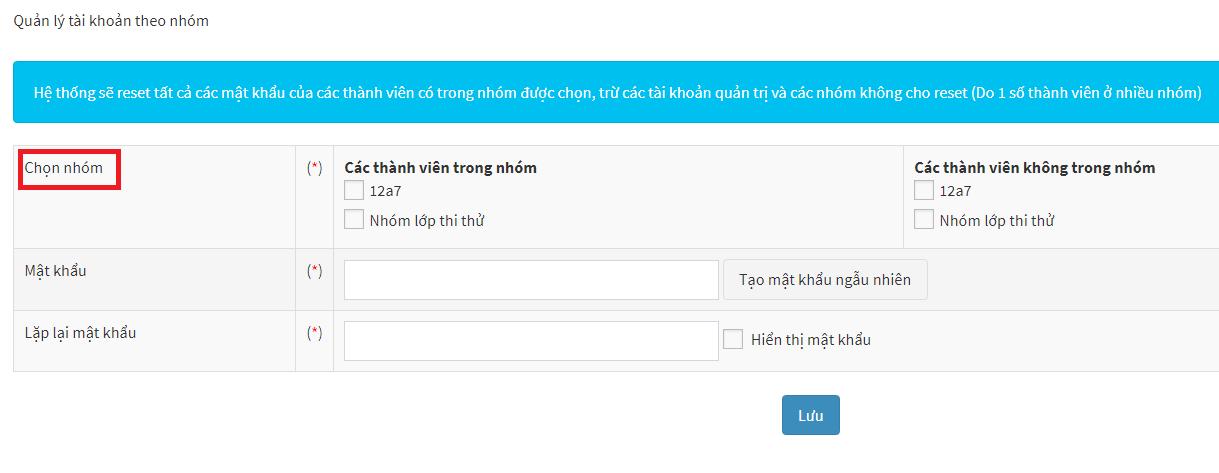
<p dir="ltr" style="text-align: justify;"><span style="font-size:14px;"><span style="font-family:Arial,Helvetica,sans-serif;"><strong>Bước 3:</strong> Chọn <strong>Chọn nhóm</strong></span></span></p>

<div style="text-align:center"><img alt="" height="233" src="https://lh5.googleusercontent.com/NazNSptQN2_Vp4eXHOEmNbCTD4_fUNX8HrG-do_t6WSBuh0kkVKeykbR95dPW6DcVz9bfFYgG51YOklgBeXx4tbZ5UakGTR9IfAln7GF7spC6-qAdEvG5Sy_doO3JBL60GXlEH17" width="602" /></div>

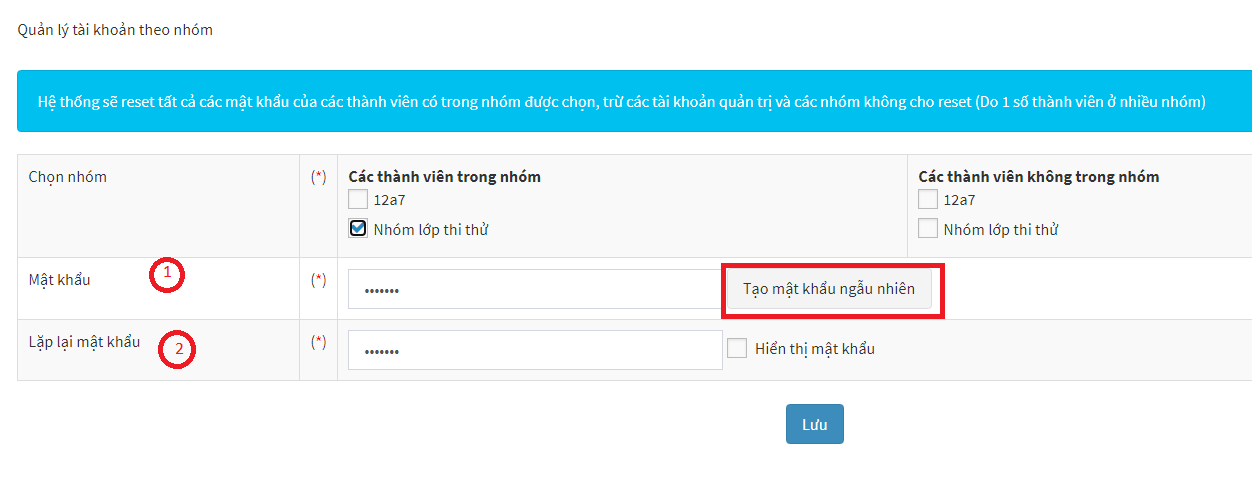
<p dir="ltr" style="text-align: justify;"><span style="font-size:14px;"><span style="font-family:Arial,Helvetica,sans-serif;"><u><strong>Bước 4:</strong></u> <strong>Tạo Mật khẩu (1)</strong> hoặc chọn <strong>Tạo mật khẩu ngẫu nhiên</strong> tùy người quản trị -&gt;<strong> Lặp lại mật khẩu (2)</strong></span></span></p>

<div style="text-align:center"><img alt="" height="232" src="https://lh5.googleusercontent.com/WpDx2uGW1ho7AuYxPVX7a0WDEI0BfUfo7-SuzAfJU2K4zQDcCTEB7Z3odhyzYuTOhkNMrfUCLzVJI6Z13BuxgY34bVE-VvC0F_aSYA-2NAJ3lXRC__rEs8zE-AiNtoXrigWudvyW" width="602" /></div>

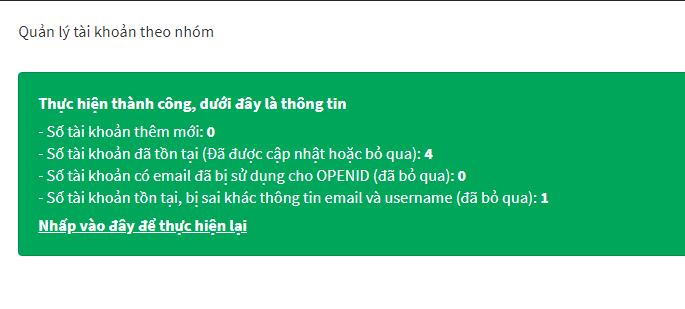
<p dir="ltr" style="text-align: justify;"><span style="font-size:14px;"><span style="font-family:Arial,Helvetica,sans-serif;"><u><strong>Bước 5:</strong></u> Chọn <strong>Lưu</strong> sau khi reset mật khẩu thành công sẽ xuất hiện thông báo như hình bên dưới.&nbsp;</span></span></p>

<div style="text-align:center"><img alt="" height="260" src="https://lh5.googleusercontent.com/Rfz3bA5feJYyM5gQ_6Wobf7nofsde85ZzFbTh5iyqk784BdhVcBqnmlhfRjzTa0__eqEa6MszQMyQ-Oil_2WjmKDI3KVMQdLnUYMtof7l3ERsBedB06dHMC4GGJDffliLOdMUjgG" width="602" /></div>

<h2 dir="ltr" style="text-align: justify;"><strong>4. Xuất tài khoản ra Excel</strong></h2>

<p dir="ltr" style="text-align: justify;"><span style="font-size:14px;"><span style="font-family:Arial,Helvetica,sans-serif;">Tính năng này cho phép người dùng xuất dữ liệu tài khoản thành viên ra file Excel, các bước thực hiện rất đơn giản.&nbsp;</span></span></p>

<p dir="ltr" style="text-align: justify;"><span style="font-size:14px;"><span style="font-family:Arial,Helvetica,sans-serif;"><u><strong>Bước 1:</strong></u> Đăng nhập vào site quản trị</span></span></p>

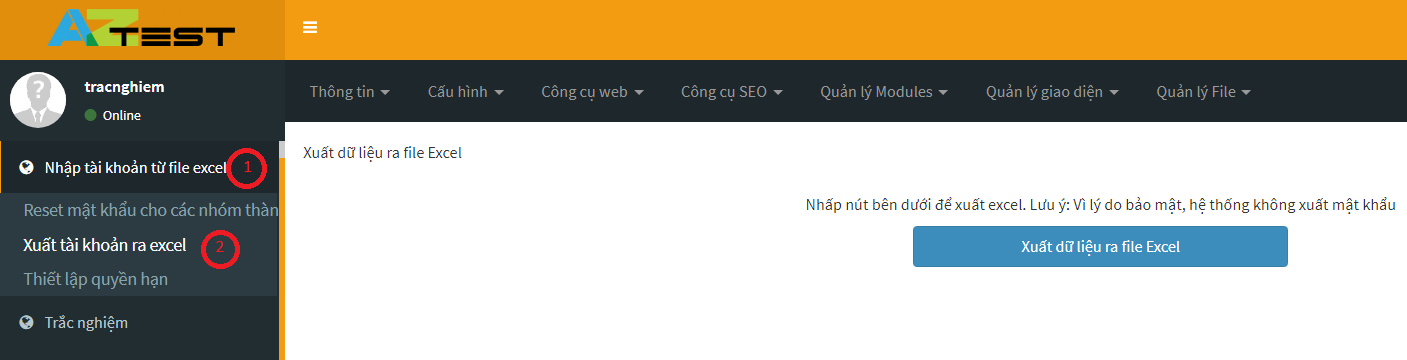
<p dir="ltr" style="text-align: justify;"><span style="font-size:14px;"><span style="font-family:Arial,Helvetica,sans-serif;"><u><strong>Bước 2:</strong></u> Chọn <strong>Nhập tài khoản từ file Excel (1) -&gt; Xuất dữ liệu ra file Excel (2)</strong></span></span></p>

<div style="text-align:center"><img alt="" height="153" src="https://lh4.googleusercontent.com/OziNweREjZmThSYjOgyT9Mcx7qSux5zEOcxL_wKKnYDZyeYuC_YCJqrWp2Cr3Grm7SwlvVxgiChtZrWAr9aH2gnXp9hWueQi0HpdFz1lW0ZFAfmuVDNH7SqGjmXkiHawbR49VVVU" width="602" /></div>

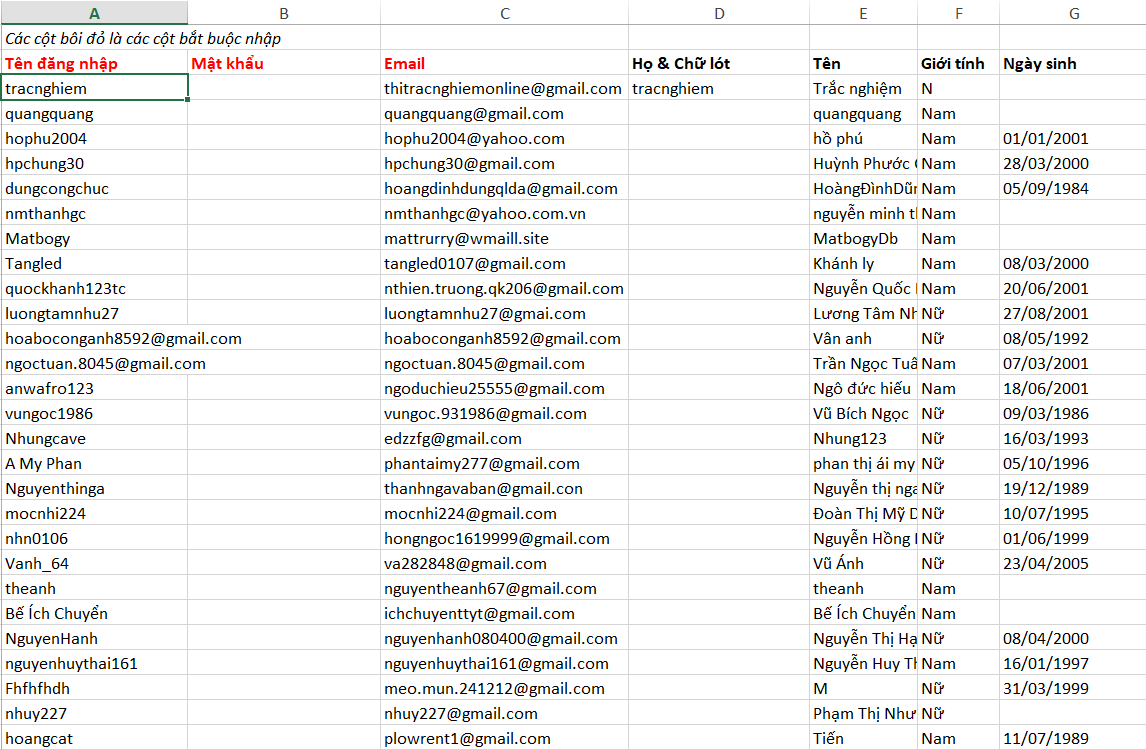
<p dir="ltr" style="text-align: justify;"><span style="font-size:14px;"><span style="font-family:Arial,Helvetica,sans-serif;">Sau khi nhấn <strong>xuất dữ liệu ra file Excel </strong>bạn sẽ có một file dữ liệu với các thông tin liên quan đến thành viên của site nhưng không có mật khẩu (vì hệ thống bảo mật thông tin thành viên nên sẽ không có trường mật khẩu).</span></span></p>

<div style="text-align:center"><img alt="" height="393" src="https://lh5.googleusercontent.com/R_nxxk8zPfhGAnZULMm6xsJRFZ_fmkpCVAK5SrjVFL_ZzzD5mbg0xnfKJ0yWFjwvmt6VI-RibRzdvifzUDjkD6EF24CQHc4n7EWmgo-vpBF69jPfpo1nAmxhoLLxVLG-32mgzUhp" width="602" /></div>

<h2 dir="ltr" style="text-align: justify;"><strong>5. Thiết lập quyền hạn&nbsp;</strong></h2>

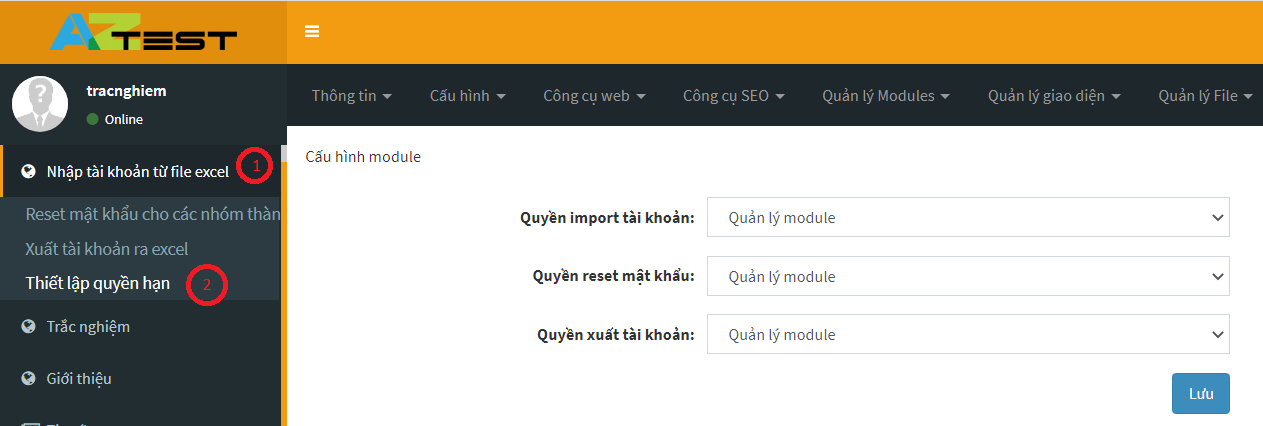
<p dir="ltr" style="text-align: justify;"><span style="font-size:14px;"><span style="font-family:Arial,Helvetica,sans-serif;">Tính năng này sẽ thiết lập quyền hạn cho người dùng trong Cấu hình module bao gồm: Quyền import tài khoản, quyền reset mật khẩu, quyền xuất tài khoản.&nbsp;</span></span></p>

<p dir="ltr" style="text-align: justify;"><span style="font-size:14px;"><span style="font-family:Arial,Helvetica,sans-serif;">Các bước thực hiện như sau:</span></span></p>

<p dir="ltr" style="text-align: justify;"><span style="font-size:14px;"><span style="font-family:Arial,Helvetica,sans-serif;"><u><strong>Bước 1:</strong></u> Đăng nhập vào site quản trị</span></span></p>

<p dir="ltr" style="text-align: justify;"><span style="font-size:14px;"><span style="font-family:Arial,Helvetica,sans-serif;"><u><strong>Bước 2:</strong></u> Chọn <strong>Nhập tài khoản từ file Excel (1) -&gt; Thiết lập quyền hạn (2)</strong></span></span></p>

<div style="text-align:center"><img alt="" height="203" src="https://lh6.googleusercontent.com/pGT1zC0ZWoOj7WXRJ-Tf5kMngkSPYVhjHQgEoxPZR36YoqLMoIEql_EcWJWaZRieQwGWpq4JXTic-6o4aRf30bAEdElH1St4cGX-vqqhIU7xWoq0FLTnGH8ndzCPw6oYj5gQ3VA2" width="602" /></div>

<p dir="ltr" style="text-align: justify;"><span style="font-size:14px;"><span style="font-family:Arial,Helvetica,sans-serif;"><u><strong>Bước 3:</strong></u> Chọn <strong>Quyền import tài khoản -&gt; Quản lý module/Quản trị tối cao/Điều hành chung</strong></span></span></p>

<div style="text-align:center"><img alt="" height="237" src="https://lh3.googleusercontent.com/rP6vCgrnawx6eZXnqGxu3K53aZxlRceWLVUvViHghYtRlvd2o5l0EDuUW9C14U1-FSX_90XR73JV0Vx9Hc-dq4POp_XatNTI5q03ch_HsS1NcWIc8YcQzVvlRcbXa1l5MLMZ2M8V" width="602" /></div>

<p dir="ltr" style="text-align: justify;"><span style="font-size:14px;"><span style="font-family:Arial,Helvetica,sans-serif;">Đối với quyền reset mật khẩu, quyền xuất tài khoản thực hiện tương tự như quyền import tài khoản.&nbsp;</span></span></p>

<p dir="ltr" style="text-align: justify;"><span style="font-size:14px;"><span style="font-family:Arial,Helvetica,sans-serif;">Trên đây là các bước hướng dẫn nhập tài khoản từ file Excel mà <strong><a href="https://aztest.vn/">AZtest</a></strong> muốn chia sẻ đến bạn. Hy vọng sẽ giúp ích cho bạn trong quá trình sử dụng hệ thống trắc nghiệm AZtest. Trong quá trình sử dụng nếu có điều gì thắc mắc liên hệ ngay hotline <span style="color:rgb(192, 57, 43);"><strong>0233.777.4455</strong></span> để được nhân viên tư vấn, hỗ trợ tận tình.&nbsp;</span></span></p>

<p dir="ltr" style="text-align: justify;"><em><strong><span style="font-size:14px;"><span style="font-family:Arial,Helvetica,sans-serif;">&gt;&gt;&gt; XEM THÊM: <a href="https://aztest.vn/news/tin-tuc-thong-bao/huong-dan-import-cau-hoi-tu-file-excel-len-aztest-525.html">Hướng dẫn import câu hỏi từ file Excel lên AZtest</a></span></span></strong></em><br  />
<span style="font-size:14px;"><span style="font-family:Arial,Helvetica,sans-serif;">--------------------------------------------<br  />
AZtest là hệ thống tạo lập website thi trắc nghiệm trực tuyến do&nbsp;<strong><a href="https://tdfoss.vn/">CÔNG TY TNHH PHÁT TRIỂN VÀ DỊCH VỤ NGUỒN MỞ THUẬN ĐỨC</a>&nbsp;</strong>phát triển.&nbsp;Với AZtest, người dùng có thể dễ dàng sở hữu một website tổ chức ôn tập, thi trắc nghiệm trực tuyến hoàn toàn miễn phí, độc lập, được cá nhân hóa theo yêu cầu của người quản trị.<br  />
Liên hệ hotline&nbsp;<strong>02337774455 (Ext 3)</strong>&nbsp;hoặc Fanpage&nbsp;<a href="https://fb.me/aztest.vn"><strong>https://m.me/aztest.vn</strong></a>&nbsp;để được tư vấn trực tiếp bởi đội ngũ kỹ thuật viên của AZtest.<br  />
<em><strong>&gt;&gt;&gt; Nguồn:&nbsp;<a href="https://aztest.vn/news/tin-tuc-thong-bao/huong-dan-nhap-tai-khoan-tu-file-excel-539.html">https://aztest.vn/news/tin-tuc-thong-bao/huong-dan-nhap-tai-khoan-tu-file-excel-539.html</a></strong></em></span></span></p>
		</div>
	</div>
	<div id="footer" class="clearfix">
		<div id="url">
			<strong>URL của bản tin này: </strong><a href="http://taodethitracnghiemonline.aztest.vn/news/savefile/huong-dan-su-dung-aztest/huong-dan-nhap-tai-khoan-tu-file-excel-len-aztest-17.html" title="Hướng dẫn nhập tài khoản từ file Excel lên AZtest">http://taodethitracnghiemonline.aztest.vn/news/savefile/huong-dan-su-dung-aztest/huong-dan-nhap-tai-khoan-tu-file-excel-len-aztest-17.html</a>

		</div>
		<div class="clear"></div>
		<div class="copyright">
			&copy; taodethitracnghiemonline
		</div>
		<div id="contact">
			<a href="mailto:contact@aztest.vn">contact@aztest.vn</a>
		</div>
	</div>
</div>
	<div id="timeoutsess" class="chromeframe">
		Bạn đã không sử dụng Site, <a onclick="timeoutsesscancel();" href="http://taodethitracnghiemonline.aztest.vn/#">Bấm vào đây để duy trì trạng thái đăng nhập</a>. Thời gian chờ: <span id="secField"> 60 </span> giây
	</div>
	<div id="openidResult" class="nv-alert" style="display: none"></div>
	<div id="openidBt" data-result="" data-redirect=""></div>
<div id="run_cronjobs" style="visibility:hidden;display:none;"><img alt="cron" src="/index.php?second=cronjobs&amp;p=l97kP0K9" width="1" height="1" /></div>
<script src="http://taodethitracnghiemonline.aztest.vn/assets/js/jquery/jquery.min.js"></script>
<script>var nv_base_siteurl="/",nv_lang_data="vi",nv_lang_interface="vi",nv_name_variable="nv",nv_fc_variable="op",nv_lang_variable="language",nv_module_name="news",nv_func_name="savefile",nv_is_user=0, nv_my_ofs=7,nv_my_abbr="+07",nv_cookie_prefix="nv4c_4tbfAL",nv_check_pass_mstime=28738000,nv_area_admin=0,nv_safemode=0,theme_responsive=1,nv_recaptcha_ver=2,nv_recaptcha_sitekey="",nv_recaptcha_type="image",XSSsanitize=1;</script>
<script src="http://taodethitracnghiemonline.aztest.vn/assets/js/language/vi.js"></script>
<script src="http://taodethitracnghiemonline.aztest.vn/assets/js/DOMPurify/purify3.js"></script>
<script src="http://taodethitracnghiemonline.aztest.vn/assets/js/global.js"></script>
<script src="http://taodethitracnghiemonline.aztest.vn/assets/js/site.js"></script>
<script src="http://taodethitracnghiemonline.aztest.vn/themes/default/js/news.js"></script>
<script src="http://taodethitracnghiemonline.aztest.vn/themes/template_pgd/js/main.js"></script>
<script async src="http://taodethitracnghiemonline.aztest.vn//pagead2.googlesyndication.com/pagead/js/adsbygoogle.js"></script>
<script>
		  (adsbygoogle = window.adsbygoogle || []).push({
		    google_ad_client: "ca-pub-1191237483249472",
		    enable_page_level_ads: true
		  });
		</script>
<script async src="https://www.googletagmanager.com/gtag/js?id=UA-163906928-1"></script>
<script>
      window.dataLayer = window.dataLayer || [];
      function gtag(){dataLayer.push(arguments);}
      gtag('js', new Date());
      gtag('config', 'UA-163906928-1');
    </script>
<script src="http://taodethitracnghiemonline.aztest.vn/themes/template_pgd/js/bootstrap.min.js"></script>
<script src="http://taodethitracnghiemonline.aztest.vn/themes/template_pgd/js/jquery.sticky-kit.min.js"></script>
<script>
		$(document).ready(function() {
			$('.sticky').stick_in_parent({
				parent: "body",
				offset_top: 10
			});
		});
	</script>
</body>
</html>